ABB Inverter Wi‑Fi Connection Troubleshooting
Step‑by‑step instructions for troubleshooting ABB inverter Wi‑Fi connectivity.
Table of Contents
- ABB - Common Causes of Wi‑Fi Disconnects
- ABB - Step 1: Access the Inverter Interface
- ABB - Step 2: Configure Inverter to connect to home Wi‑Fi
- ABB - Step 3: Enter Address Details
- ABB - Step 4: Adjust Security Settings
- ABB - Step 5: Set Admin Password
- ABB - Step 6: Confirm Successful Connection
- ABB - Key Notes
ABB - Common Causes of Wi‑Fi Disconnects
-
Weak 2.4GHz Wi‑Fi Signal can be caused by interference from household devices.
-
Incorrect Router Wireless Settings can disrupt connectivity.
Recommended wireless mode: B/G/N for 2.4GHz networks.
ABB - Step 1: Access the Inverter Interface
-
Connect to the ABB Inverter’s Wi‑Fi via your phone’s Wi‑Fi settings.
-
Open a web browser and enter the IP address 192.168.117.1.
-
Log in using:
- Username: Admin
- Password: utica
Note: For ABB 50kW, 5kW, or 6kW inverters, use:
- Username: utica001
- Password: utica001
- (Password Reset Tip: Use the product key printed on the inverter’s side if required.)
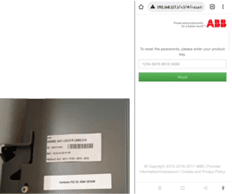
ABB - Step 2: Configure Inverter to connect to home Wi‑Fi
-
Scroll down to locate the network setup fields.
-
Enter your home Wi‑Fi credentials (SSID and password).
-
Optionally, temporarily connect your phone to your home Wi‑Fi to simplify this step.
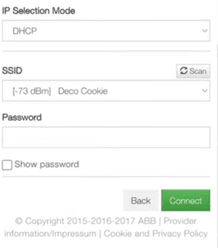
ABB - Step 3: Enter Address Details
Fill in the required address information (e.g., location or system ID).
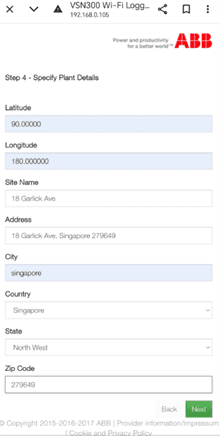
ABB - Step 4: Adjust Security Settings
Check the 'No Password' prompt (if applicable) to bypass additional authentication steps.
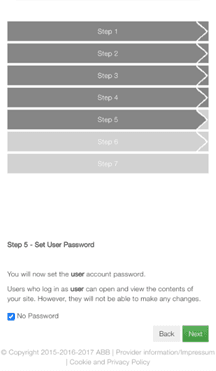
ABB - Step 5: Set Admin Password
Confirm or update the administrator credentials:
- Username: Admin
- Password: utica
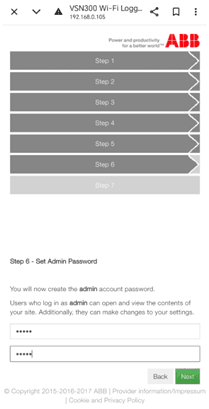
ABB - Step 6: Confirm Successful Connection
If the system status page appears, the Wi‑Fi connection is successfully established. You can now monitor real‑time inverter performance and solar data.
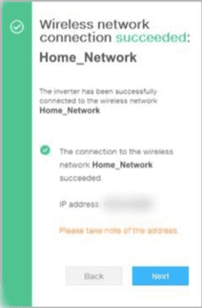
ABB - Key Notes
Ensure the inverter is within range of your router’s 2.4GHz signal. Avoid dual-band (2.4GHz/5GHz) SSID names.