ABB 5-6kW Inverter Wi-Fi Connection Troubleshooting
Step-by-step instructions for troubleshooting ABB 5-6kW inverter Wi-Fi connectivity.
Table of Contents
- ABB 5k-6kW - Step 1: Access the Inverter Interface
- ABB 5k-6kW - Step 2: Connect to the Inverter Network
- ABB 5k-6kW - Step 3: Connect to the Inverter on browser
- ABB 5k-6kW - Step 4: Select Mode on Inverter
- ABB 5k-6kW - Step 5: Select the Wifi to connect to the Inverter
- ABB 5k-6kW - Step 6: Verify connectivity of the Inverter to your Wifi
ABB 5k-6kW - Step 1: Access the Inverter Interface
On your phone, Go to wifi setting and search for inverter network (ABB or Fimer with the correct serial number).
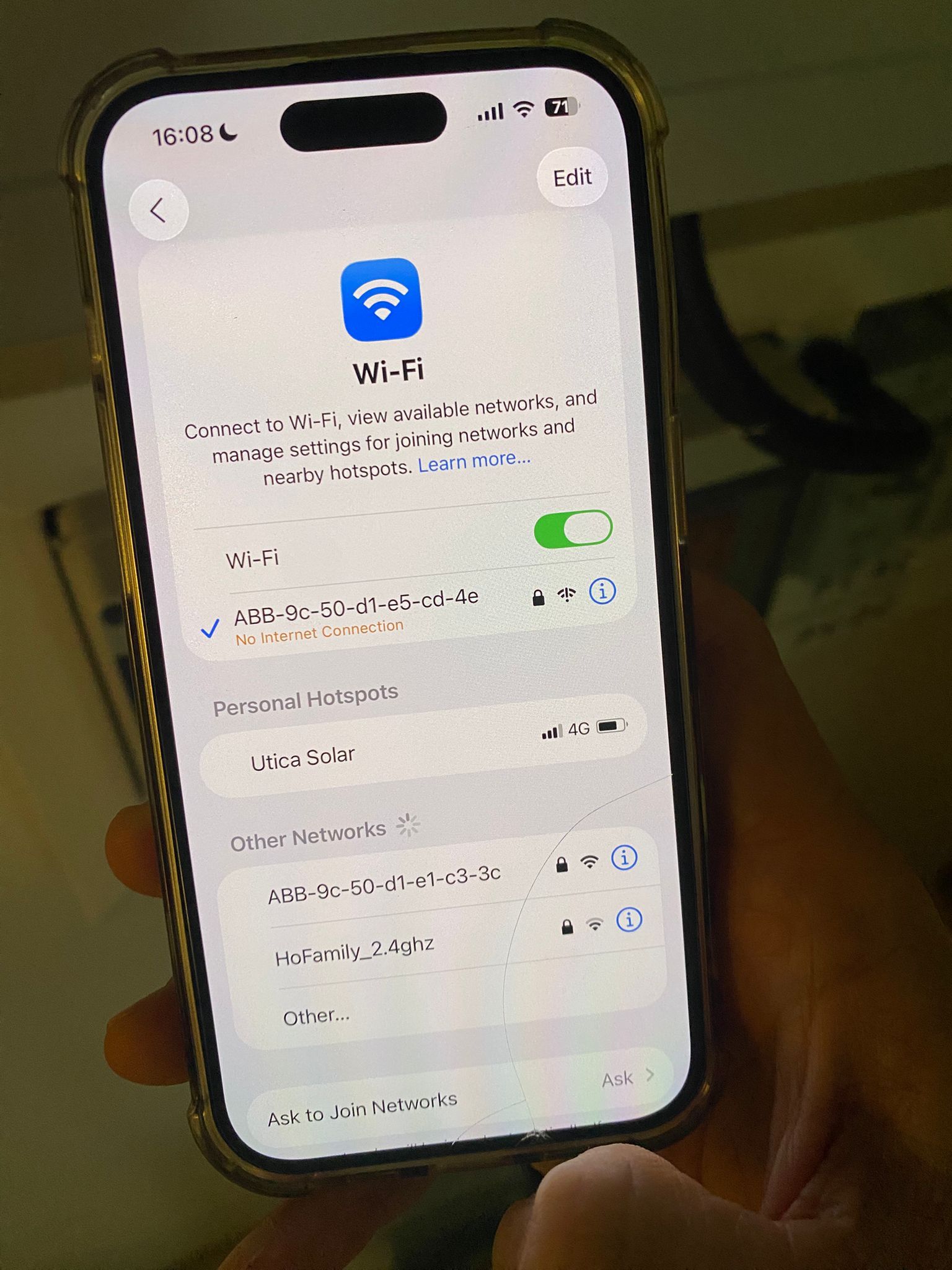
ABB 5k-6kW - Step 2: Connect to the Inverter Network
-
Select the inverter network
-
Enter password (it's usually found on a sticker on the side of the inverter near the QR code). Password includes digits and hyphens. DO NOT omit the hyphens.
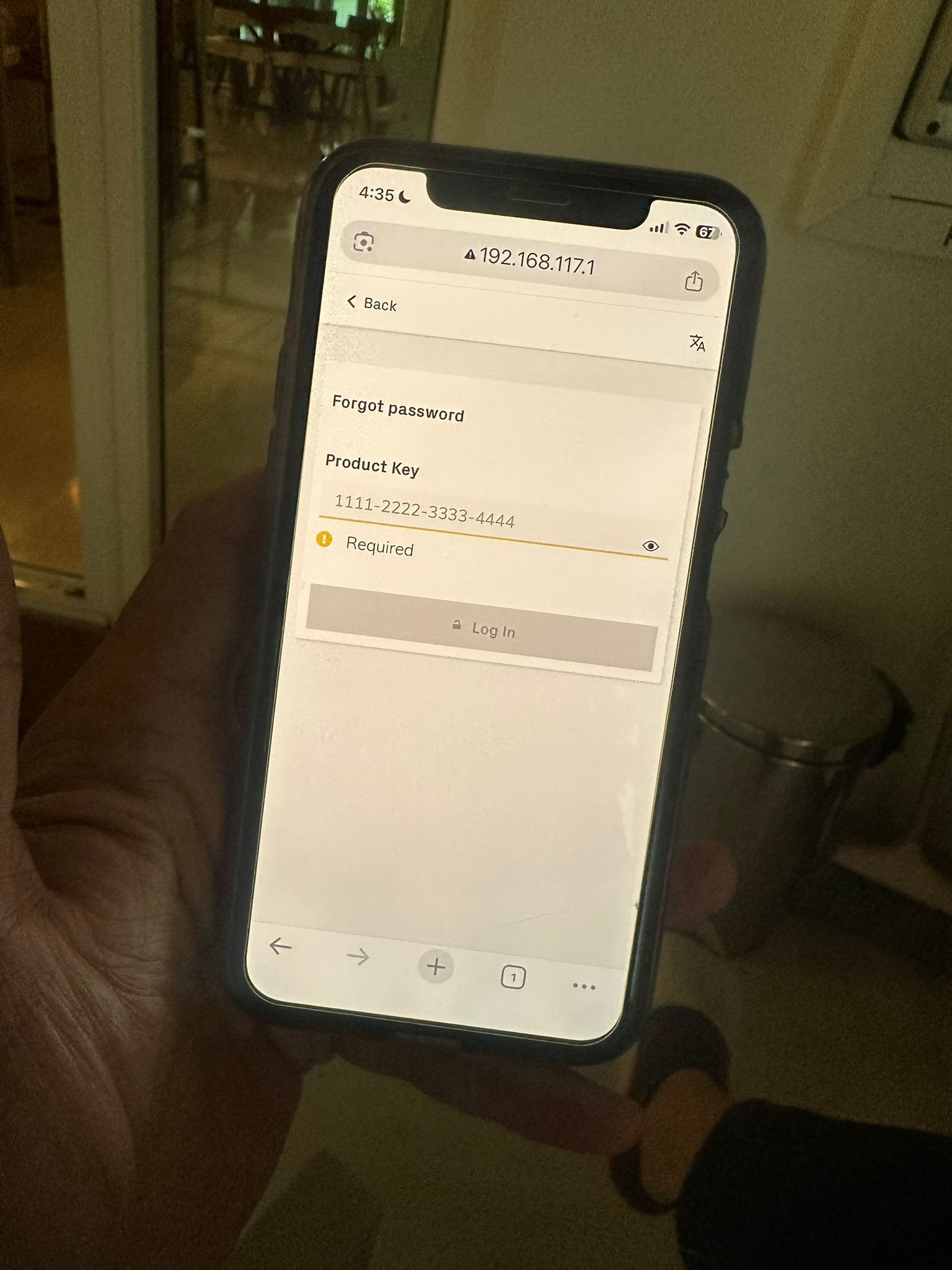
ABB 5k-6kW - Step 3: Connect to the Inverter on browser
-
Open safari or chrome browser and enter: 192.168.117.1
-
Select manage router and go to dashboard.
-
You should always be near the inverter and stay on that browser while connecting.
-
If you open other browsers or app, it can’t be connected.
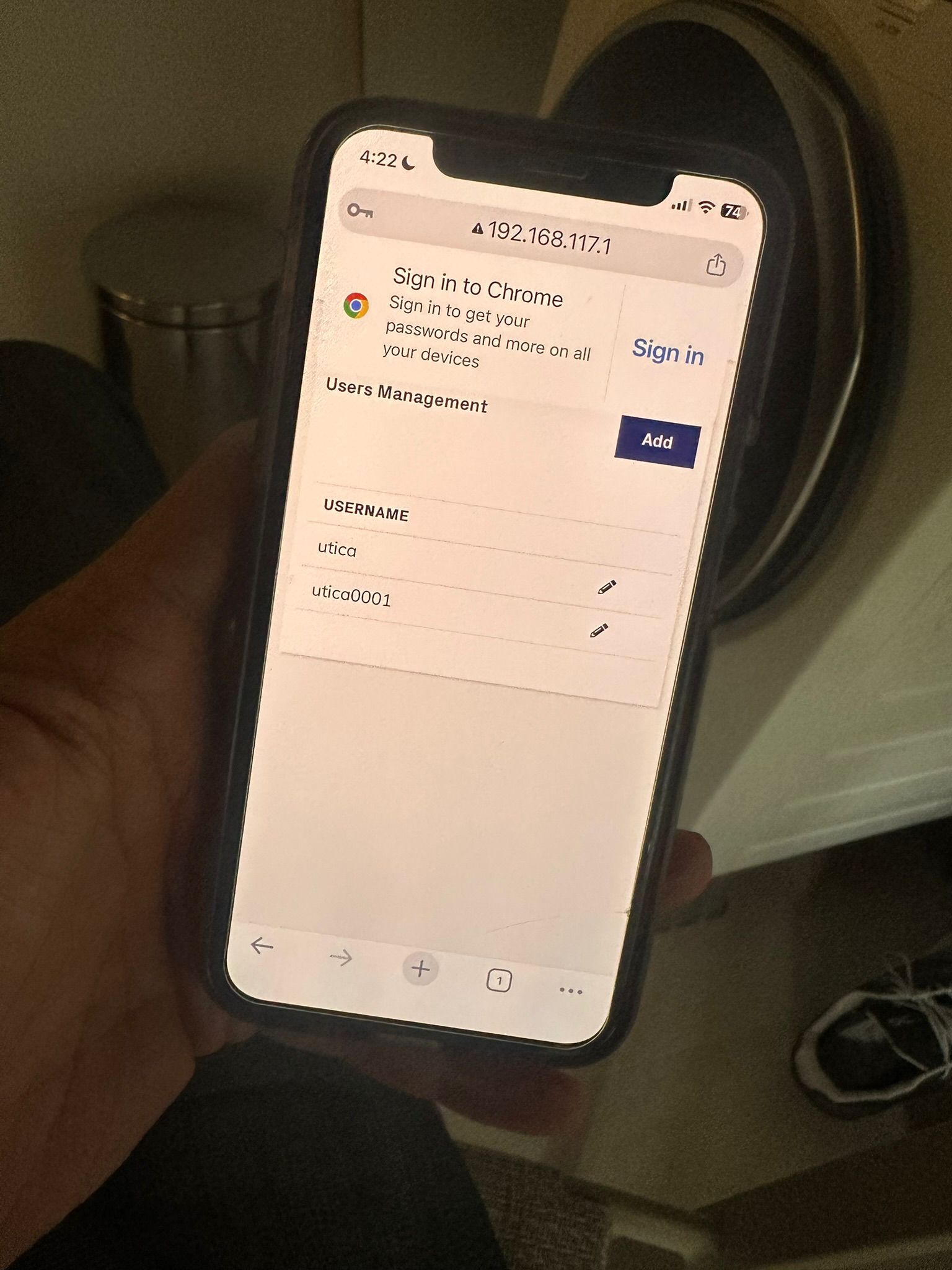
ABB 5k-6kW - Step 4: Select Mode on Inverter
-
Once you are on the inverter home page, choose utica001 mode
-
key in password: utica001
ABB 5k-6kW - Step 5: Select the Wifi to connect to the Inverter
Go to wifi connectivity icon (beside alarm icon) and select Wi-Fi.
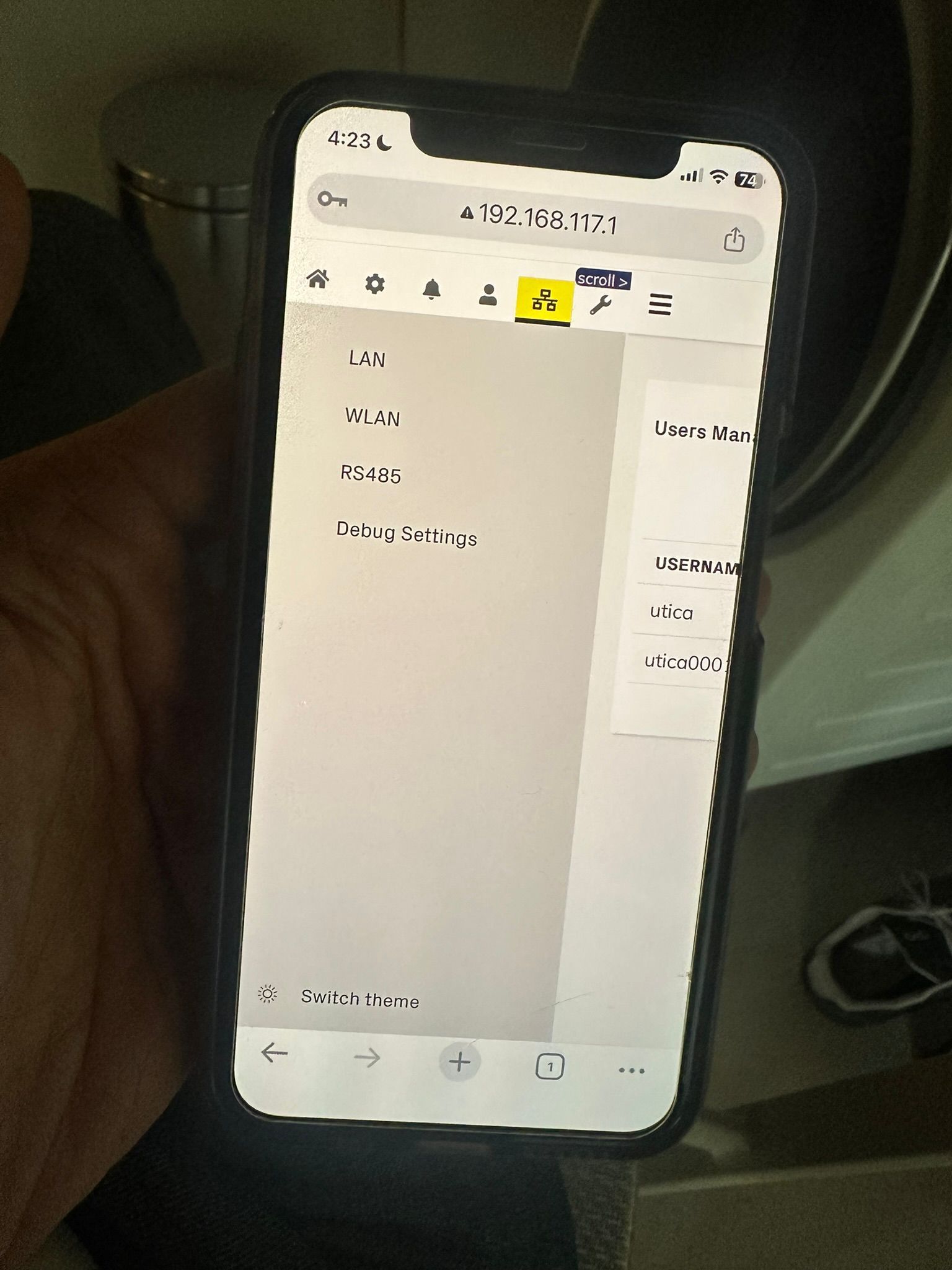
ABB 5k-6kW - Step 6: Verify connectivity of the Inverter to your Wifi
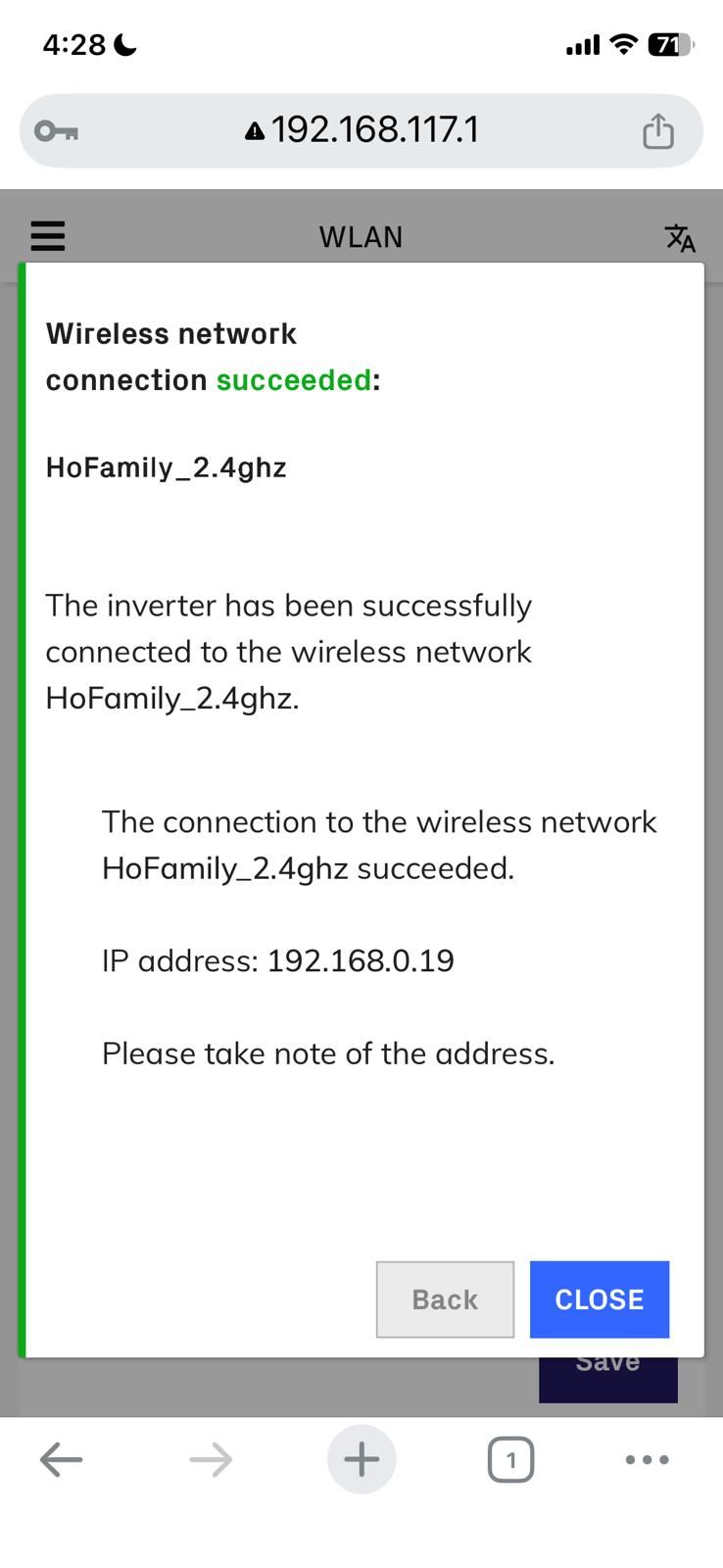
Please check the wifi station. If you see the green light below Wi-fi Station, it means wifi-connected. (Please double check that the blue light is stable and not flashing on the inverter). This could take 1-3 minutes.
If not connected, open your hotspot network from your mobile data, and fill in the password. Choose DHCP in IP setting. Please wait for a while until it is connected.