Huawei Inverter Wi‑Fi Connection Troubleshooting
Step‑by‑step instructions for troubleshooting Huawei inverter Wi‑Fi connectivity.
Table of Contents
- Huawei - Step 1: Log In to Fusion Solar
- Huawei - Step 2: Navigate to Device Commissioning
- Huawei - Step 3: Connect to the Inverter
- Huawei - Step 4: Access Installer Mode
- Huawei - Step 5: Configure Communication Settings
- Huawei - Step 6: Connect to Home Wi‑Fi
- Important Note
- Huawei - Step 7: Finalize System Management
- Huawei - Step 8: Complete Commissioning
- Huawei - Key Reminders
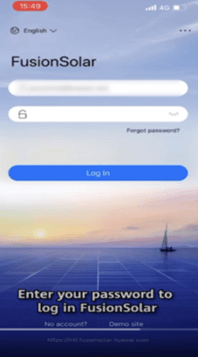
Huawei - Step 1: Log In to Fusion Solar
Enter the Huawei-provided ID and password (sent to your email) in the Fusion Solar platform.
Refer to the image below for visual guidance.
Huawei - Step 2: Navigate to Device Commissioning
Select the 'Me' tab from the menu. Click 'Device Commissioning' to proceed.
Refer to the image below for visual guidance.
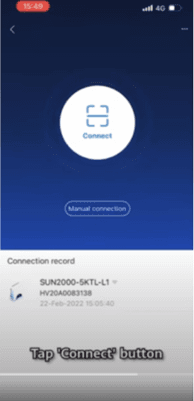
Huawei - Step 3: Connect to the Inverter
On the displayed interface, tap 'Connect'. Scan the QR code on the inverter connected to the Smart Dongle.
Refer to the image below for visual guidance.
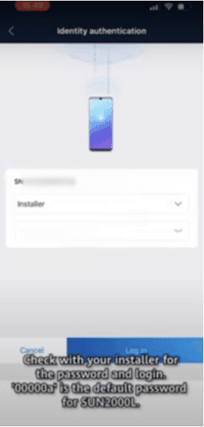
Huawei - Step 4: Access Installer Mode
Click the 'Installer' option.
- Enter the password: Uticasolar0122
- Select 'Login'.
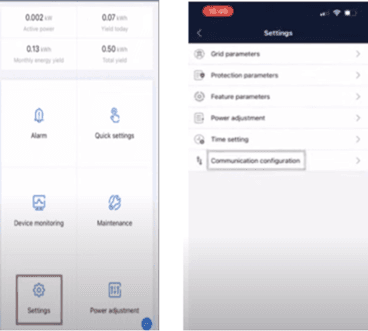
Huawei - Step 5: Configure Communication Settings
Go to 'Settings' and select 'Communication Configuration'.
Refer to the image below for visual guidance.
Huawei - Step 6: Connect to Home Wi‑Fi
-
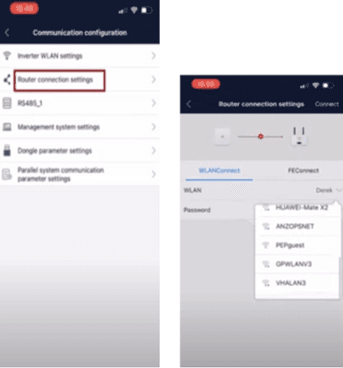
Choose 'Router Connection Settings'
-
Search for your home Wi‑Fi network (SSID)
-
Enter the password. Confirm by clicking 'Connect'
Refer to the image below for visual guidance.
Important Note
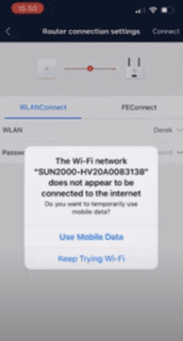
If the prompt “Connection Failed” appears (as shown in the image below): Select “Keep Trying Wi‑Fi” until the connection is established.
Huawei - Step 7: Finalize System Management
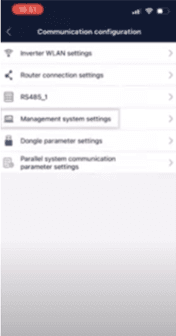
Connect to Wi‑Fi, return to the main menu and select 'Management System Setting'.
Huawei - Step 8: Complete Commissioning
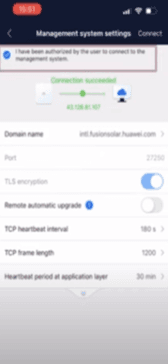
Check the checkbox in the top-left corner (ensure a blue tick appears). Click 'Connect' to finalize the setup.
After a few minutes, the inverter will be fully commissioned if all steps are completed correctly.
Huawei - Key Reminders
Ensure the Smart Dongle is properly connected to the inverter before scanning the QR code.
Maintain stable Wi‑Fi signal strength during the setup process.